The shortcuts are also listed in the help (? at the top right) and in the View menu on macOS.
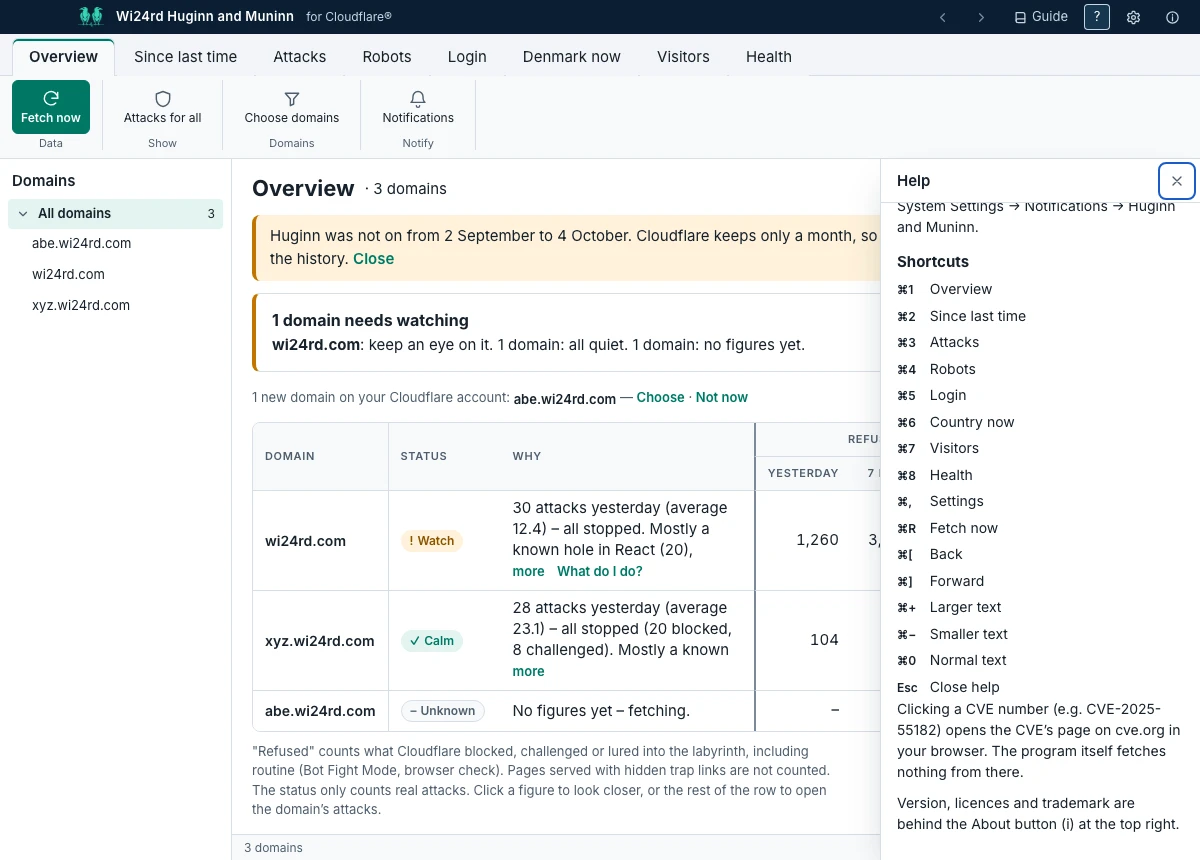
| Action | macOS | Windows |
|---|---|---|
| Overview | ⌘1 | Ctrl+1 |
| Since last time | ⌘2 | Ctrl+2 |
| Attacks | ⌘3 | Ctrl+3 |
| Robots | ⌘4 | Ctrl+4 |
| Login | ⌘5 | Ctrl+5 |
| Your country now | ⌘6 | Ctrl+6 |
| Visitors | ⌘7 | Ctrl+7 |
| Health | ⌘8 | Ctrl+8 |
| Settings | ⌘, | Ctrl+, |
| Fetch now | ⌘R | Ctrl+R or F5 |
| Back | ⌘[ or ⌘← | Alt+← |
| Forward | ⌘] or ⌘→ | Alt+→ |
| Larger text | ⌘+ | Ctrl++ |
| Smaller text | ⌘− | Ctrl+− |
| Normal text | ⌘0 | Ctrl+0 |
| Close help | Esc | Esc |
| Close the window (the program keeps running) | The red close icon | The close button |
| Quit the program completely | ⌘Q | Quit in the menu in the notification area |
| Full screen | The View menu | – |
⌘← and ⌘→ do not work while the cursor is in a text field; there they move the cursor.
In the views
- Tab moves between everything that can be clicked. Enter or Space opens the chosen item.
- A row in the Overview is opened with Enter.
- Maps and charts are one Tab stop each: the arrow keys move between the countries, rings and bars, and Enter or Space opens the chosen one.
- Technology by domain: the table is one Tab stop. The arrow keys move between the cells, Space changes the choice, and Enter enters the group, where the arrow keys choose, until Esc.
- Cut and paste (⌘C, ⌘V) work in the API Token field through the Edit menu.