Open Settings with the gear at the top right or with ⌘, (Windows: Ctrl+,). Settings is a window on top of the view you are in, and it can also be opened before you have connected to Cloudflare. Close stays at the bottom; Esc closes it too.
Every choice is saved at once on your computer. There is no Save button, except for the API Token and the name of a connection.
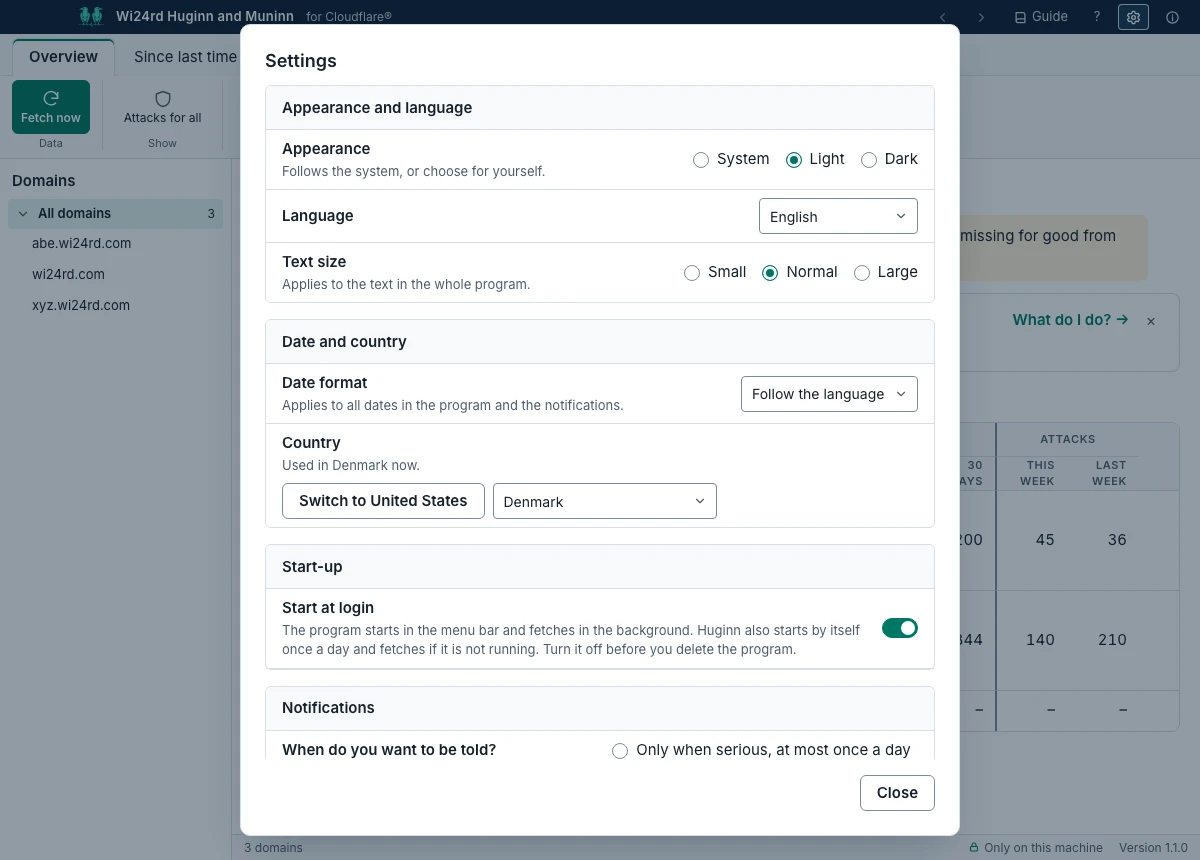
The window has seven groups: Appearance and language, Date and country, Start-up, Notifications, Connection (Connections when there is more than one), Data and First start. Three things are not here but where you use them: Domains, Notifications per domain and About.
Appearance and language, Date and country, Start-up
| Field | Choices | Default | What it does |
|---|---|---|---|
| Language | System language · Dansk · English | System language | The language in the whole program, in the menu at the raven icon and in the notifications. |
| Date format | Follow the language · Follow the system · ISO (2026-11-04) | Follow the language | Applies to all dates in the program and the notifications. |
| Country | A list of countries, and possibly the button Switch to … | From your time zone, then the system language | Used in … now. Switch to … appears when at least half of your visitors clearly come from another country. |
| Appearance | System · Light · Dark | System | Follows the system, or choose for yourself. The colours and fonts come from Wi24rd UI Kit 2. |
| Text size | Small · Normal · Large | Normal | Applies to the text in the whole program. Also ⌘+ ⌘− ⌘0 (Windows: Ctrl). |
| Start at login | Switch | On (turned on the first time a built version starts) | The program starts in the menu bar when you log in and fetches in the background. Huginn also starts by itself once a day and fetches if it is not running. The switch turns both on and off. Turn it off before you delete the program. |
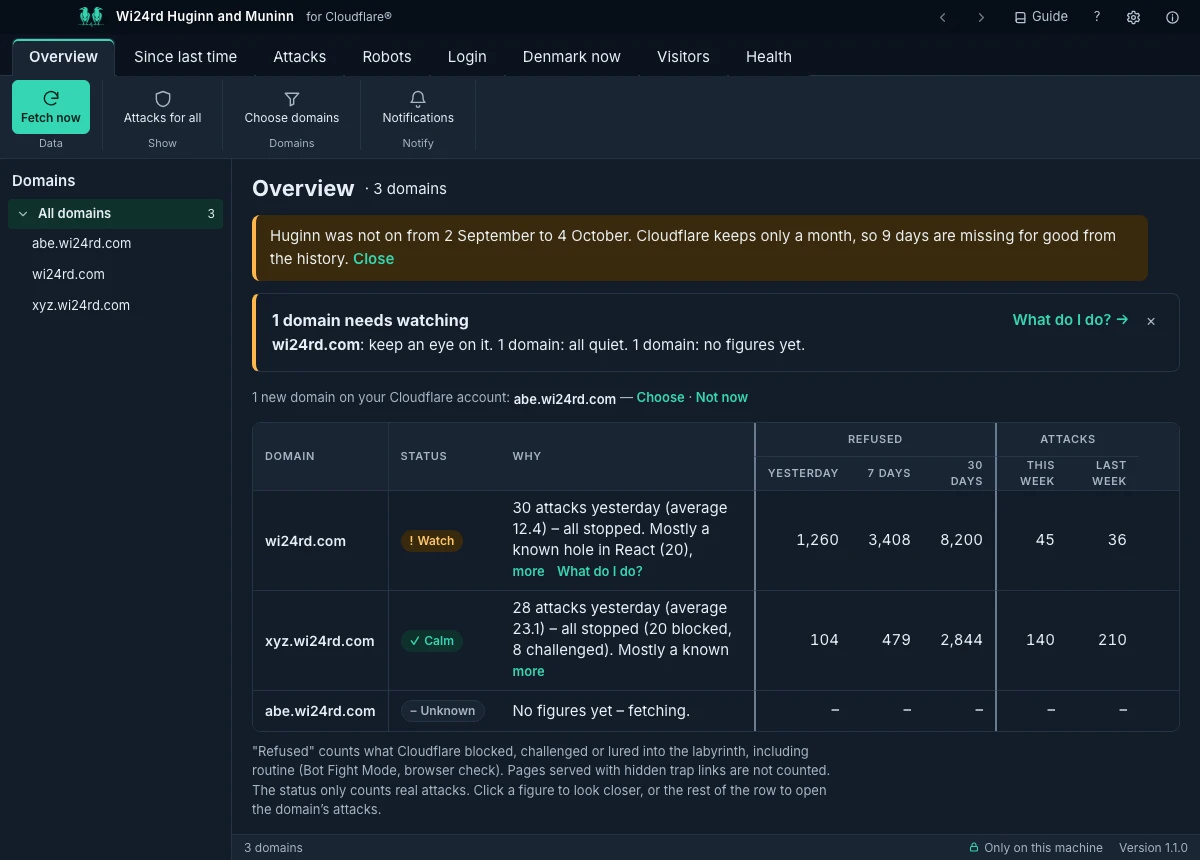
If Start at login is off, a yellow line appears at the top: "The program does not start at login. Then Huginn only fetches while the program is open. Open it at least every three weeks, or gaps will appear in the history." The button Turn on Start at login turns it back on. Turn it on and off here in the program. If you turn Huginn off under Login Items in System Settings, the switch here may still show on.
Notifications
| Field | Choices | Default | What it does |
|---|---|---|---|
| When do you want to be told? | Only when serious, at most once a day · When serious (recommended) · Also when a domain should be watched | When serious (recommended) | The overall level. The message comes from your own computer, never from a server. |
| Notify me when a domain needs action | Switch | On | Turns off the message at Act if you only want to see it in the program. |
| Notify me of “Looks like reconnaissance” | Switch | Off | Off by default: most are automated scanners. Also applies to “Looks like DNS reconnaissance”. The label always shows in Overview and Since last time. |
At the bottom it says: "You can also turn notifications off completely in System Settings → Notifications → Huginn and Muninn." What each notification means is in Notifications and background. You choose notifications for one particular domain under Notifications per domain. You edit login paths in Login with Edit paths.
Connection
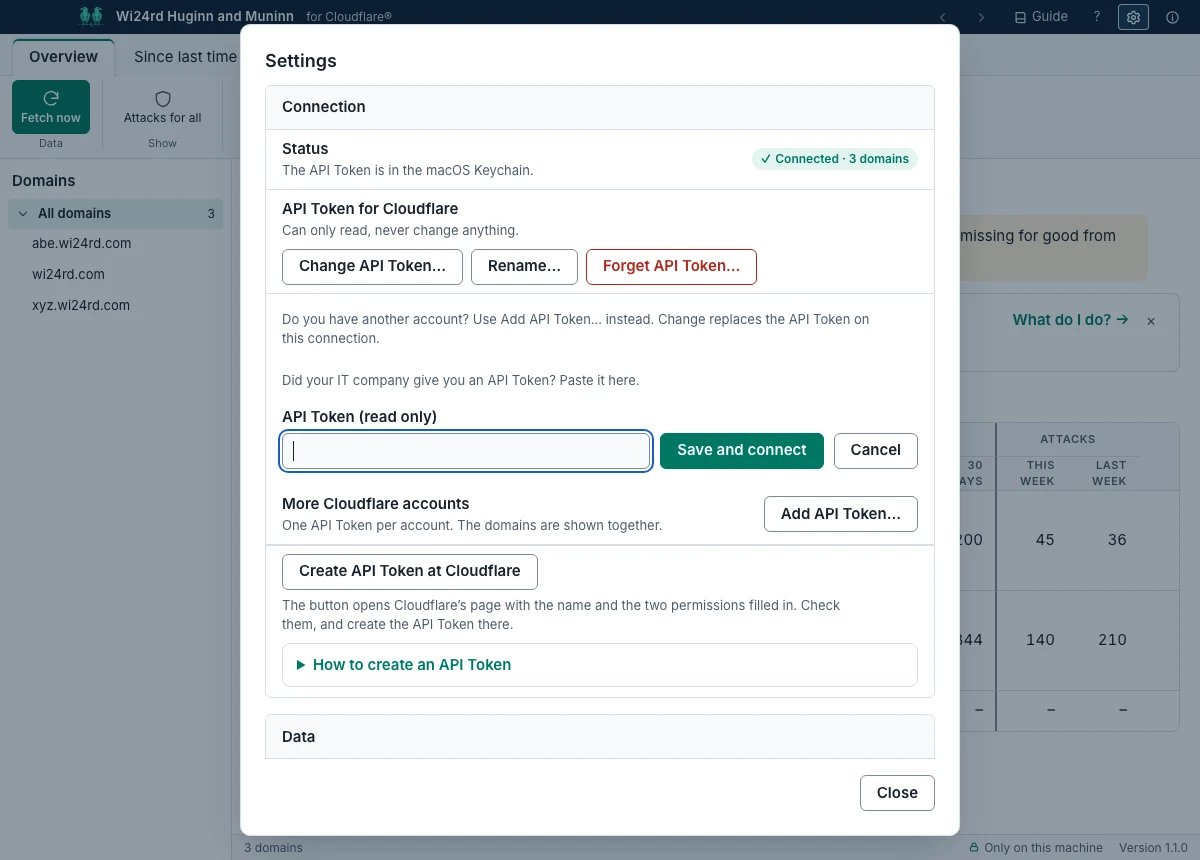
A connection is one API Token and a name. You have one connection per Cloudflare account. The domains from all connections are shown together; the Overview and the other views do not split them up by connection. The group is called Connection when there is one, and Connections when there is more than one.
With one connection
| Field | What it does |
|---|---|
| Status | The chip shows, for example, Connected · 3 domains. The line says that the API Token is in your computer's keychain (macOS Keychain or Windows Credential Manager). |
| API Token for Cloudflare – Change API Token… | Opens the field where you paste a new API Token and click Save and connect. Cancel closes it again. The old one is replaced. See Change and add. |
| Rename… | Gives the connection your own name. See The name. |
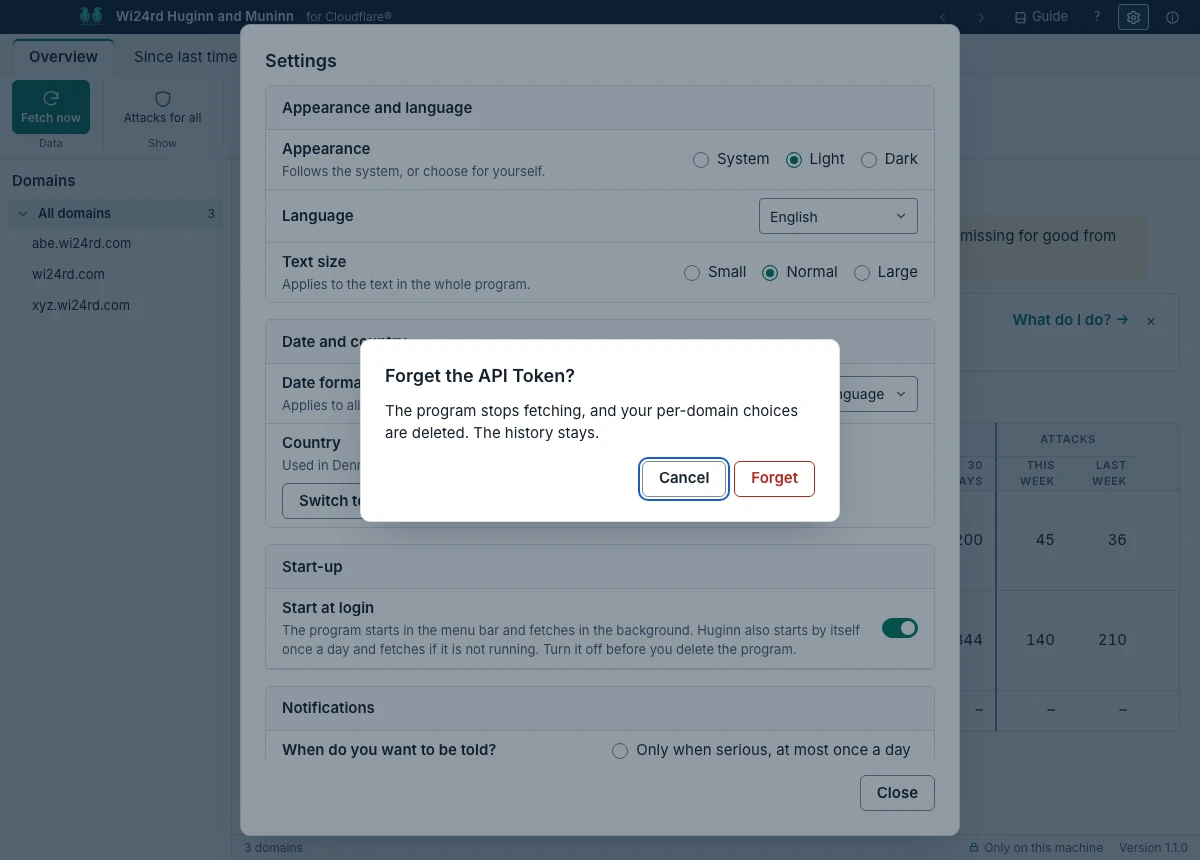
| Forget API Token… | The program asks Forget the API Token? If you choose Forget, the program stops fetching, the API Token is deleted from the keychain, and your per-domain choices are deleted (domain choice, notifications per domain, login paths, technology choices). The history stays. Setup and the guide are shown again, and you can connect again with a new API Token. |
| More Cloudflare accounts – Add API Token… | The line says "One API Token per account. The domains are shown together." The button adds one more connection. See Change and add. |
| Create API Token at Cloudflare and How to create an API Token | The same help as in setup; see Setup. |
With more than one connection
Each connection has its own row. Below the rows is Add API Token….
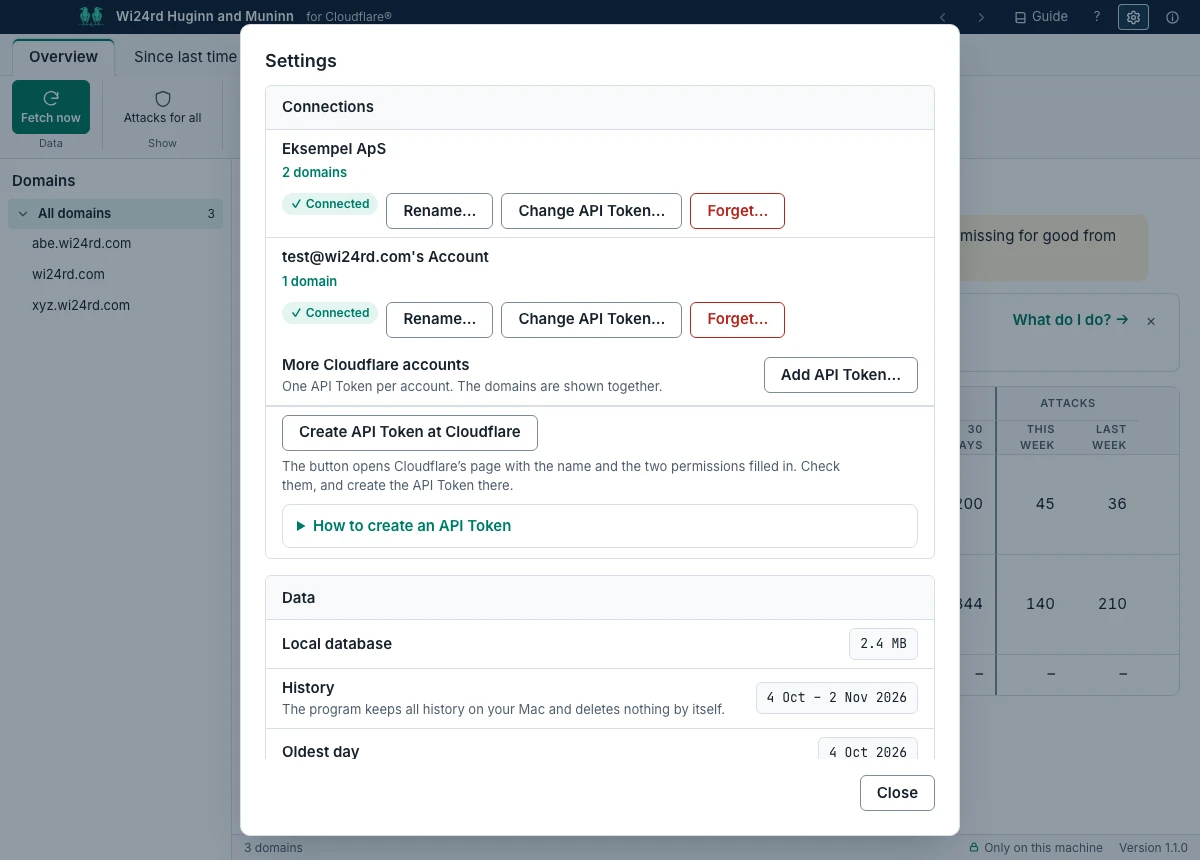
| Field | What it does |
|---|---|
| The name | The connection's name. Cannot be clicked. |
| N domains | Opens the dialog Domains at the connection's group. |
| The chip Connected / Rejected | Green Connected: clicking opens the Overview. Red Rejected: Cloudflare rejected the API Token; clicking opens Change API Token… in the row. See Troubleshooting. |
| Rename… | Gives the connection your own name. See The name. |
| Change API Token… | Replaces the API Token on this connection. See Change and add. |
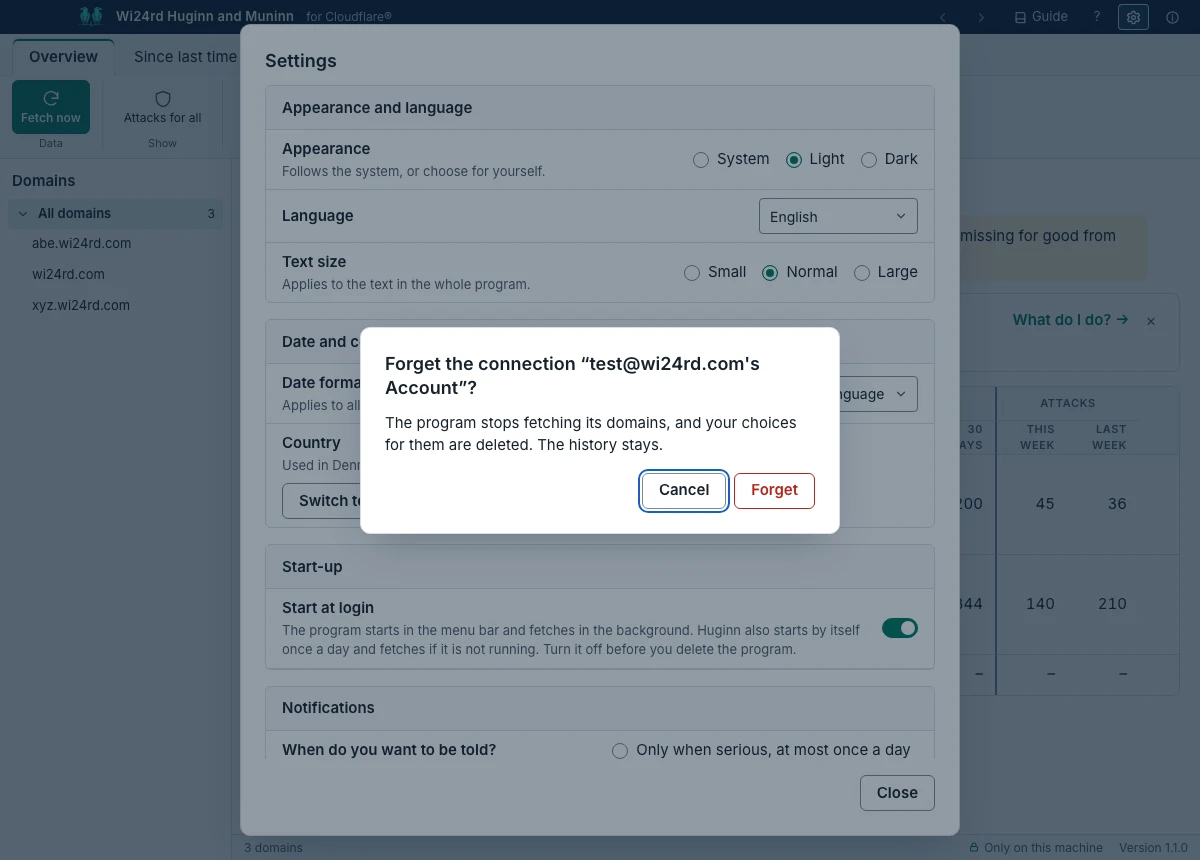
| Forget… | The program asks Forget the connection “name”? with the text "The program stops fetching its domains, and your choices for them are deleted. The history stays." If you choose Forget, the connection's API Token is deleted from the keychain. Only domains that no other connection sees lose their choices. The other connections keep fetching. |
If you forget the last connection, it is exactly as with one connection: the program asks Forget the API Token?, setup and the guide are shown again, and the history stays.
If two connections see the same domain (for example an API Token for the whole account and one for one of its domains), it is shown once in the Overview and the other views. It is fetched only with the oldest connection's API Token. If that one is forgotten or rejected, the next one takes over. In the dialog Domains, the domain stands under each connection that sees it.
Change and add
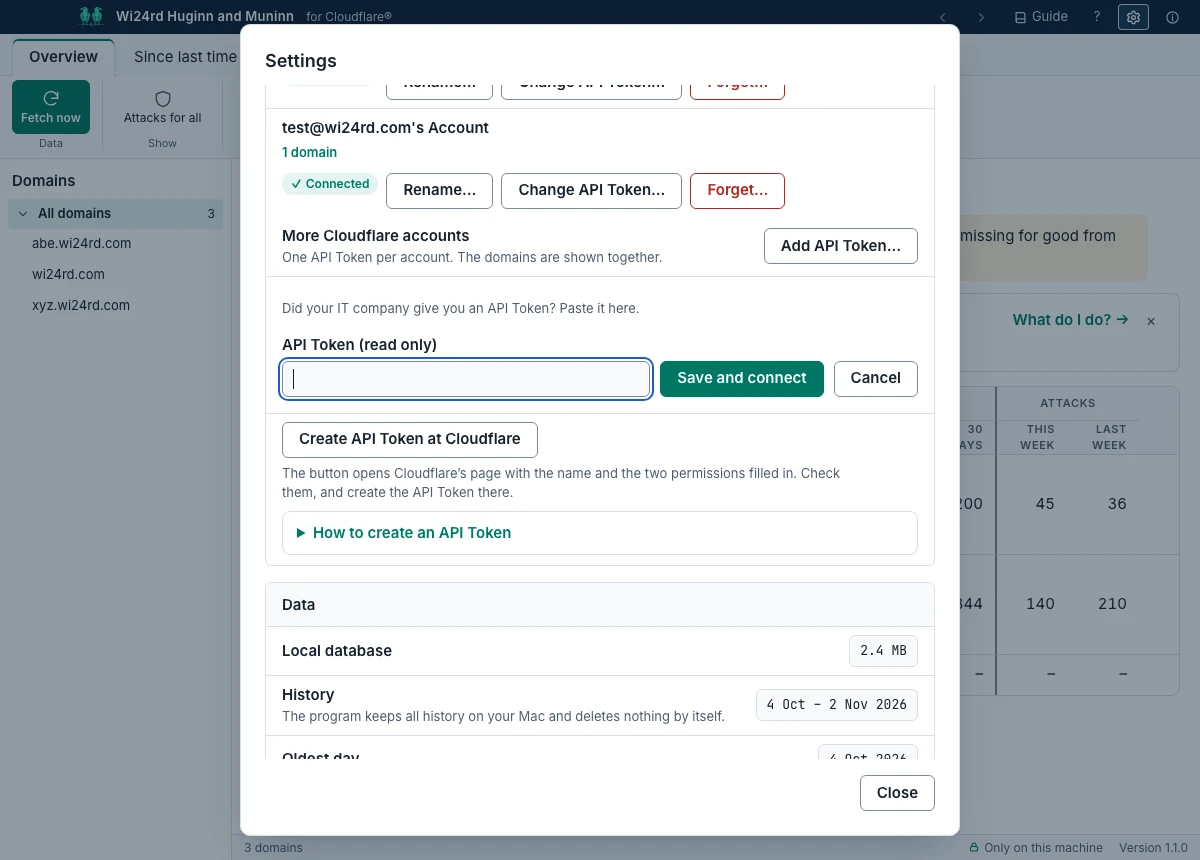
Add API Token… opens the same form as in the guide: the field API Token (read only), the button Save and connect and the help Create API Token at Cloudflare with the steps. The program checks the API Token with Cloudflare, stores it in the keychain and fetches the new connection's domains.
The new connection's domains are not chosen by themselves. If it sees exactly one domain the program did not know, that one is chosen for you. If it sees more, the dialog Domains opens at the connection's group so you can choose.
If the new connection has the same name as another (two API Tokens for the same account both have the account's name), Rename the connection opens with the note "Two connections have the same name. Give this one a name, so you can tell them apart." Cancel leaves the name as it is. If the dialog Domains is to open too, it comes afterwards.
If the API Token sees exactly the same domains as a connection you already have, it is not added. The form says "This API Token sees the same domains as “name”. It was not added." An API Token that sees fewer domains on the same account (for example one API Token per customer) can be added.
Change API Token… only replaces the API Token on its own connection. The form says: "Do you have another account? Use Add API Token… instead. Change replaces the API Token on this connection." If the new API Token belongs to a different Cloudflare account, the old account's domains disappear from the list, and the choices for the connection start over. The figures already fetched and the history stay.
The name
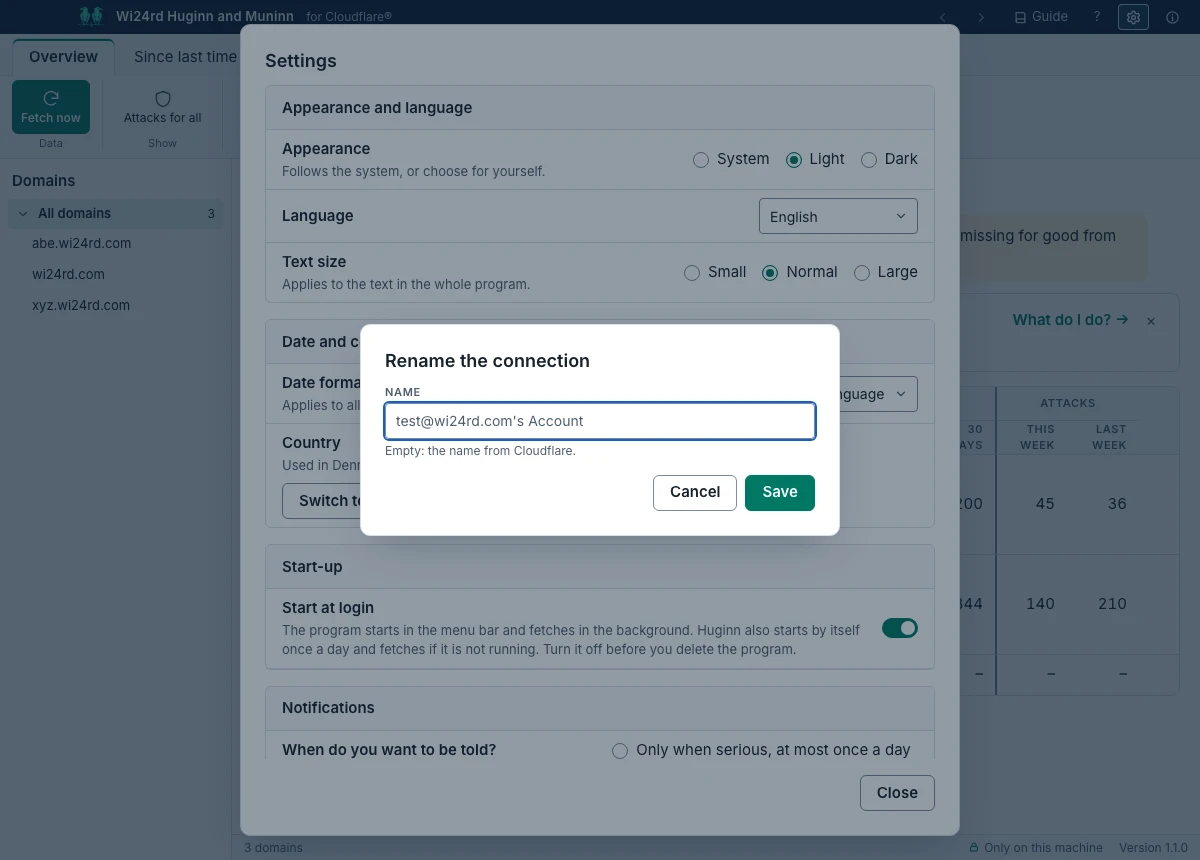
Rename… opens the dialog Rename the connection with one field, Name, and the note "Empty: the name from Cloudflare." Save with Save. If you empty the field, the name from Cloudflare is shown again. Afterwards "The name is saved." stands in the connection's row, and Rename… has the focus again.
The program shows:
- your own name, if you have given the connection one,
- otherwise the account's name at Cloudflare, unchanged, even when it is an e-mail address,
- "… + 1 more" or "… + 2 more", if one API Token sees more than one account,
- "Connection 1", "Connection 2" and so on, if the program does not know a name yet.
Data
| Field | What it shows or does |
|---|---|
| Local database | The size of the database on your computer. |
| History | The period there are figures for. Clicking opens all history for all domains in Attacks. |
| Oldest day | The first day there are figures for. |
| What is available | "Traffic from … · security events from …": how far back each kind of figure reaches. Shown when there are figures. |
| Quota at Cloudflare | "Cloudflare allows N calls per M minutes; Huginn used K in the last round." Shown when Cloudflare has reported it. |
| Gaps | The number of days without figures. Clicking opens the list Gaps in the history in the help: days that were never fetched. They are not 0. |
| Domains with figures | How many of the chosen domains have figures. Clicking opens the Overview. |
| Fetch new figures now – Fetch now | The same as Fetch now in the band. |
| Reset history… | Deletes all figures on your computer and fetches them again. The program asks first and says which dates are lost for good, and how many days that is. Your settings, domain choice, notifications and login paths stay. See Data and history. |
First start
| Field | What it does |
|---|---|
| The guide – Show the guide again | Opens the guide from the first start again. See Setup. Opening it does not change your choices or your API Token. |
Domains
Open the dialog with Choose domains in the band on Overview.
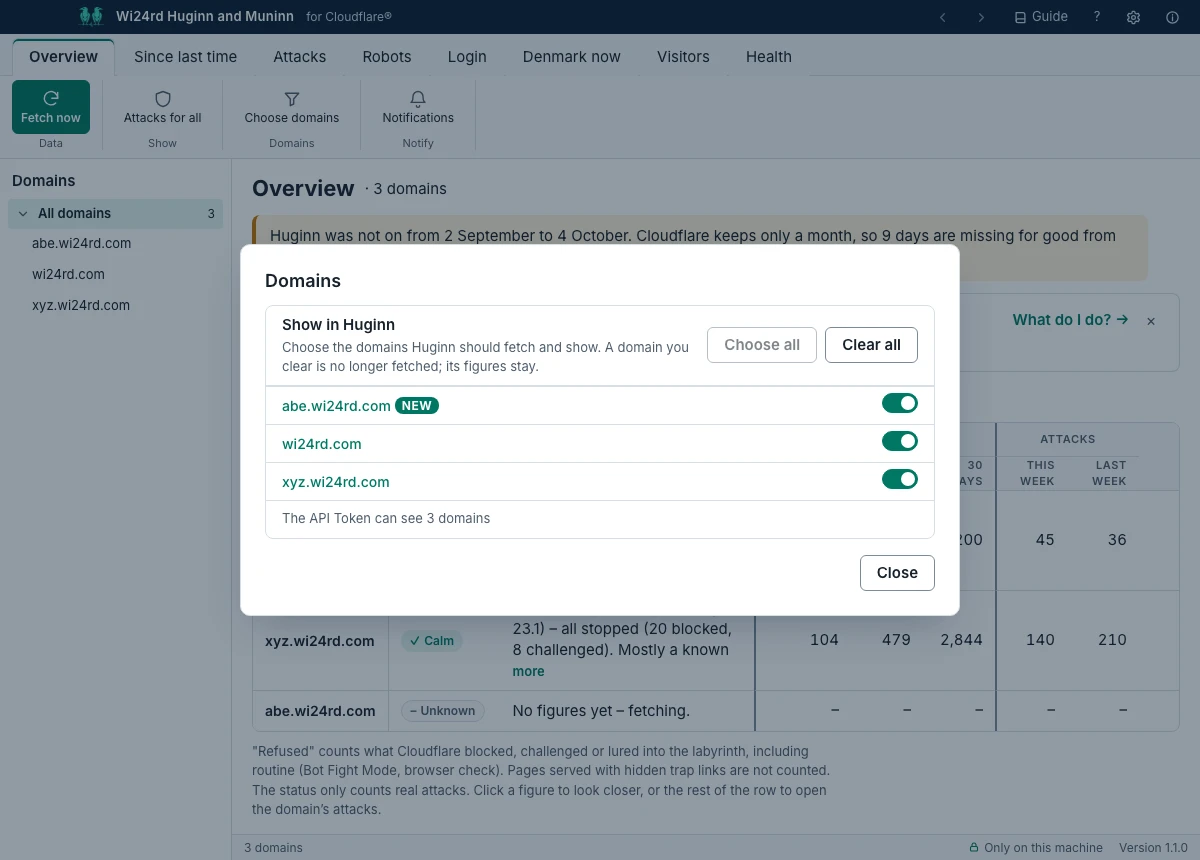
| Field | What it does |
|---|---|
| Show in Huginn – one switch per domain | Choose the domains Huginn should fetch and show. A domain you clear is no longer fetched, is not shown anywhere and gives no notifications; its figures stay, and if you choose it again, what is missing is fetched, at most the last 30 days. A domain that is new on the account is marked NEW. |
| Choose all / Clear all | All switches at once. |
| The line "The API Token sees N domains" | How many domains the API Token can see. If it sees exactly one, it is chosen for you. |
| With more than one connection: one heading and one list per connection | The heading is the connection's name. Each list has its own Select all and None, which apply to the domains the list shows; the shared Choose all and Clear all buttons are then not shown. |
| A domain under two connections, with "Fetched with “name”" | If more than one connection sees the domain, it stands under each of them. Under the connections that do not fetch it, "Fetched with “name”" names the connection that does. It is the same choice everywhere: if you switch it on or off under one, the other follows. |
| "This API Token sees no domains." | The connection's zone list is fetched, but the API Token sees no domains. Before the list is fetched, it says "The domains appear here once the zone list is fetched." |
| The line "M API Tokens can see N domains in total" | Shown with more than one connection instead of the line above. |
What technology your site uses, you say in Technology by domain, which you open with Edit technologies in the band on Attacks.
Notifications per domain
Open the dialog with Notifications (the bell) in the band on Overview.
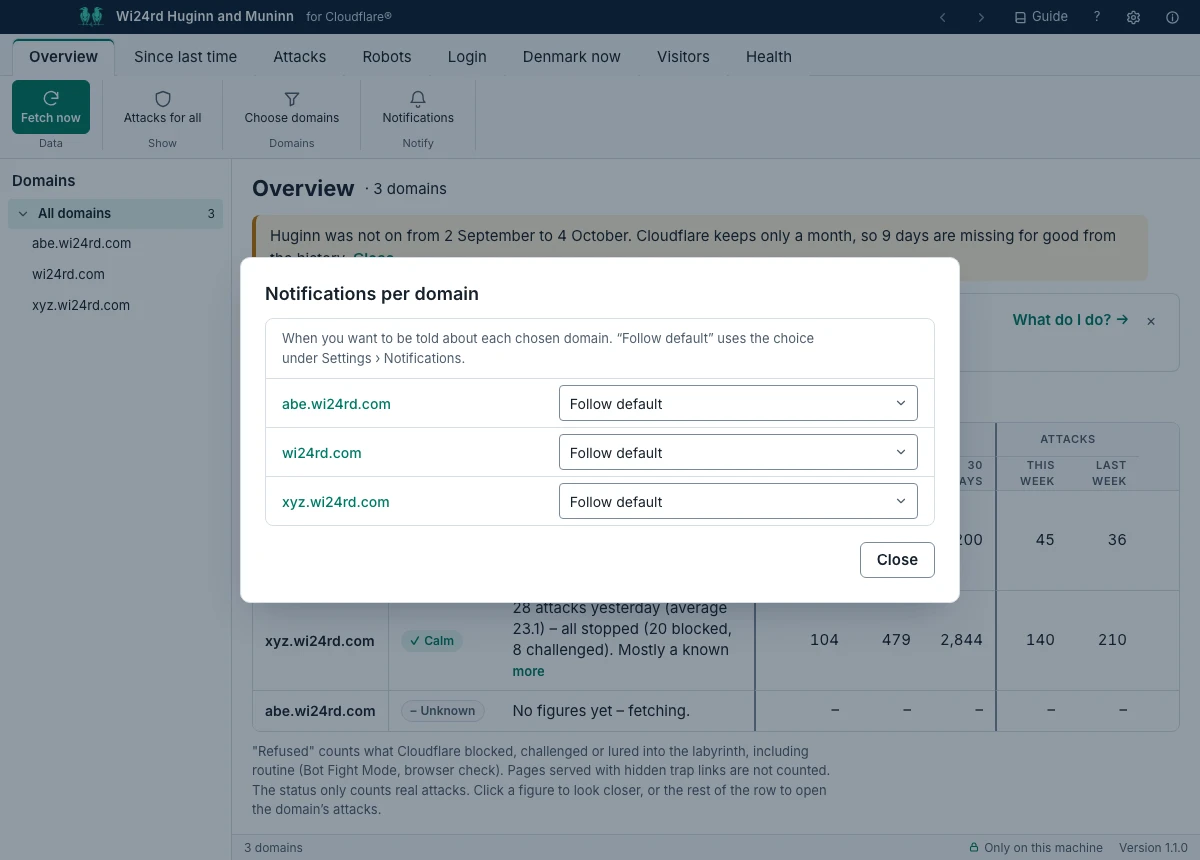
| Field | Choices | Default | What it does |
|---|---|---|---|
| One choice per domain | Follow default · Serious and watch · Serious only · Never | Follow default | Overrides the overall level for one domain. Follow default uses the choice under Settings › Notifications. |
About
Open the dialog with the i button next to the gear (About Huginn and Muninn).
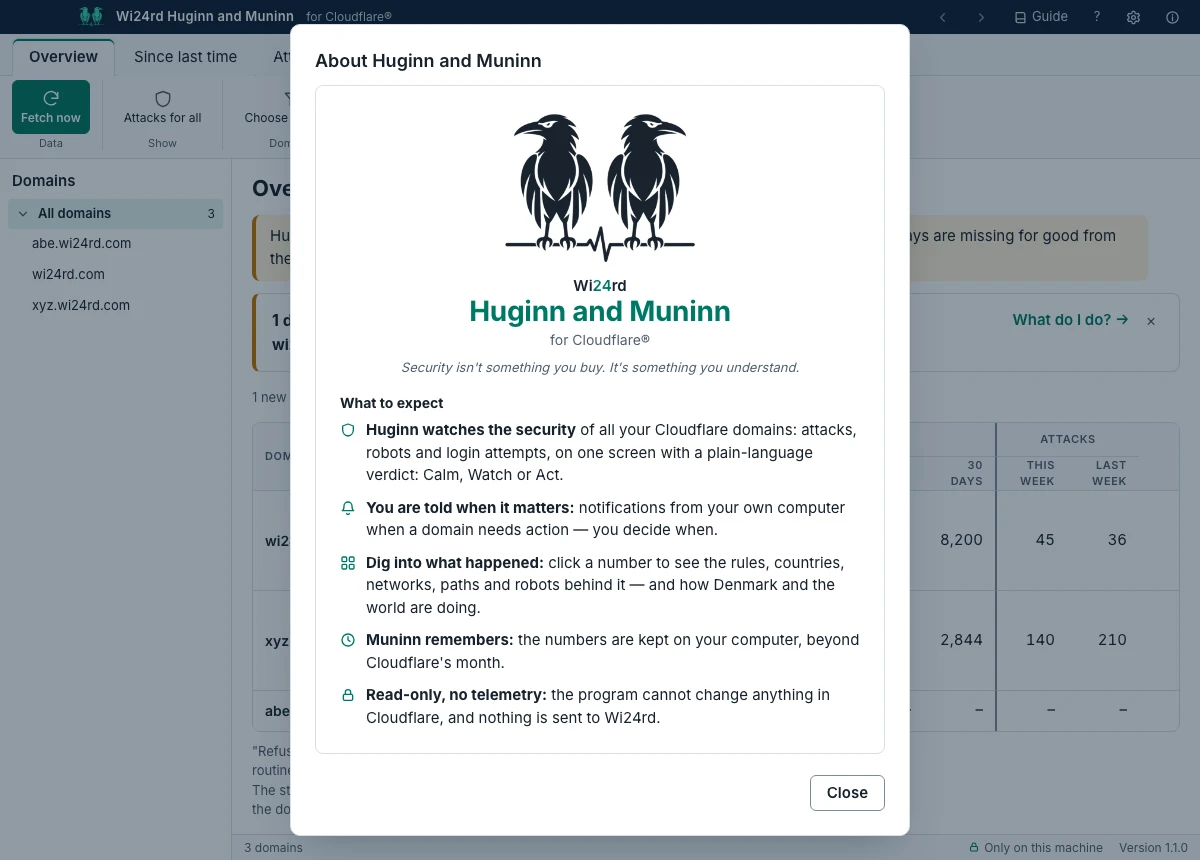
The version, the line "Apache-2.0 licence · No telemetry · Nothing is sent to Wi24rd", fonts and map data (Inter and JetBrains Mono under the SIL Open Font License 1.1; world-countries under ODbL and Natural Earth, public domain), the trademark line about Cloudflare and the button Open the guide, which opens the guide in your browser.