Open Settings with the gear at the top right, with ⌘, or in the menu Grimnir → Settings…. A choice is saved as soon as you change it. Close closes the dialog. Settings also work while Grimnir is locked; only Show the guide again is greyed out.
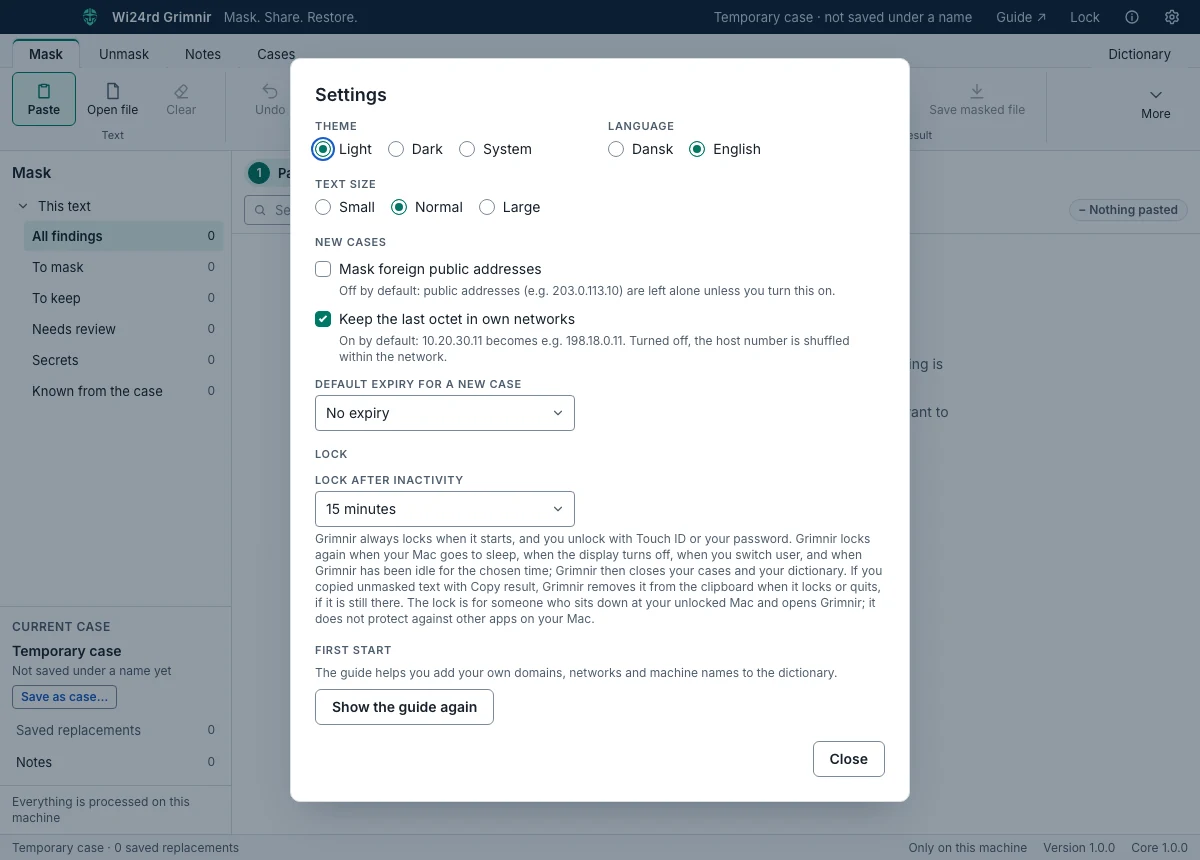
Theme, language and text size
| Field | Choices | Default | Effect |
|---|---|---|---|
| Theme | Light, Dark, System | System | The colours of the whole window. System follows macOS. |
| Language | Dansk, English | Dansk | The language of the window. Changes straight away. |
| Text size | Small, Normal, Large | Normal | The size of all text in the window. ⌘+, ⌘− and ⌘0 and the menu View do the same. |
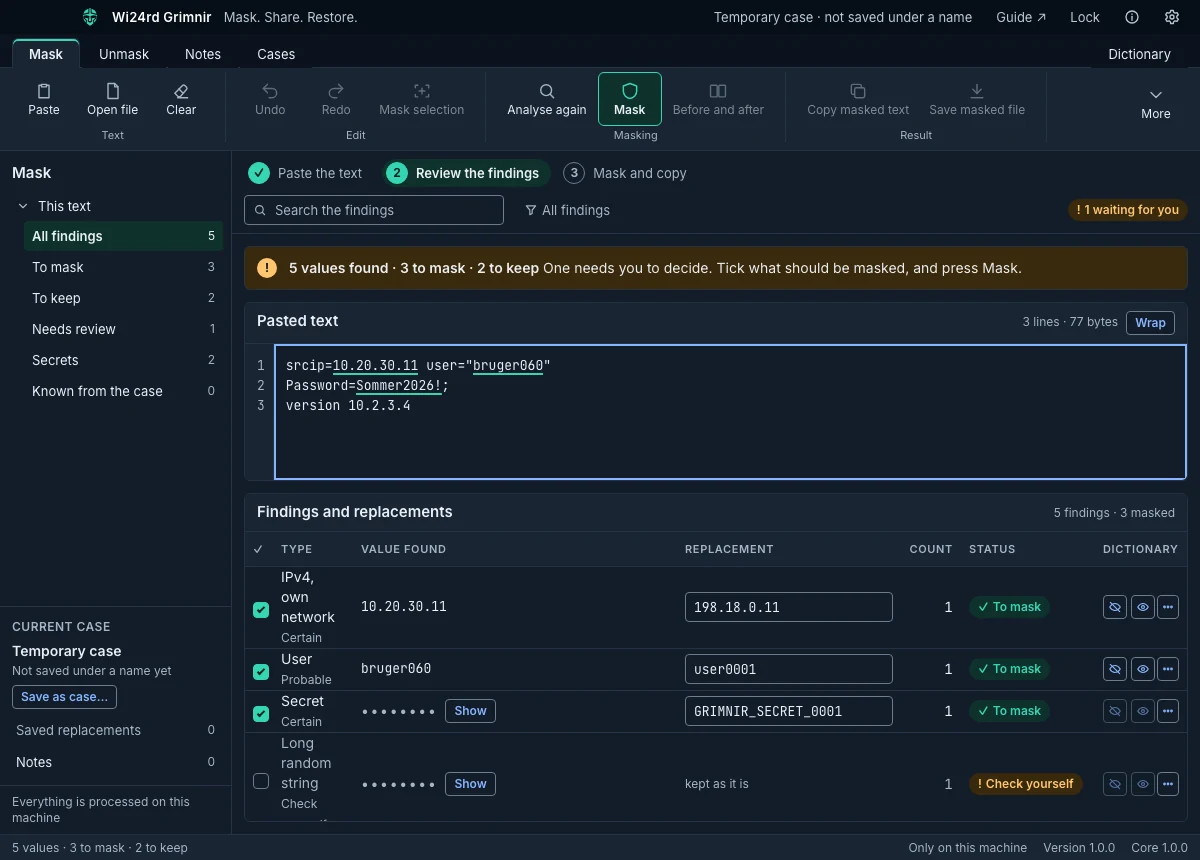
New cases
The choices apply to new cases. A case that already exists has its own choices in the case dialog in the title bar (Choices for this case).
| Field | Choices | Default | Effect |
|---|---|---|---|
| Mask foreign public addresses | on or off | off | Off: public addresses (e.g. 203.0.113.10) are left alone unless you turn this on. |
| Keep the last octet in own networks | on or off | on | On: 10.20.30.11 becomes e.g. 198.18.0.11. Turned off, the host number is shuffled within the network. |
| Default expiry for a new case | No expiry, 30 days, 90 days | No expiry | The expiry New case suggests. It also applies to a temporary case that is saved on lock or quit. |
Lock
| Field | Choices | Default | Effect |
|---|---|---|---|
| Lock after inactivity | 5 minutes, 15 minutes, 30 minutes, 60 minutes | 15 minutes | Grimnir locks when it has been idle for that time: no keyboard or mouse in the window and no work in progress. There is no setting that turns the lock off. |
When else Grimnir locks, and what happens on lock, is in The lock.
First start
Show the guide again opens the guide from the first start, so you can add more domains, networks and machine names to the dictionary. See Setup.
About Grimnir
You open About Grimnir with ⓘ at the top right or in the menu Grimnir → About Grimnir.
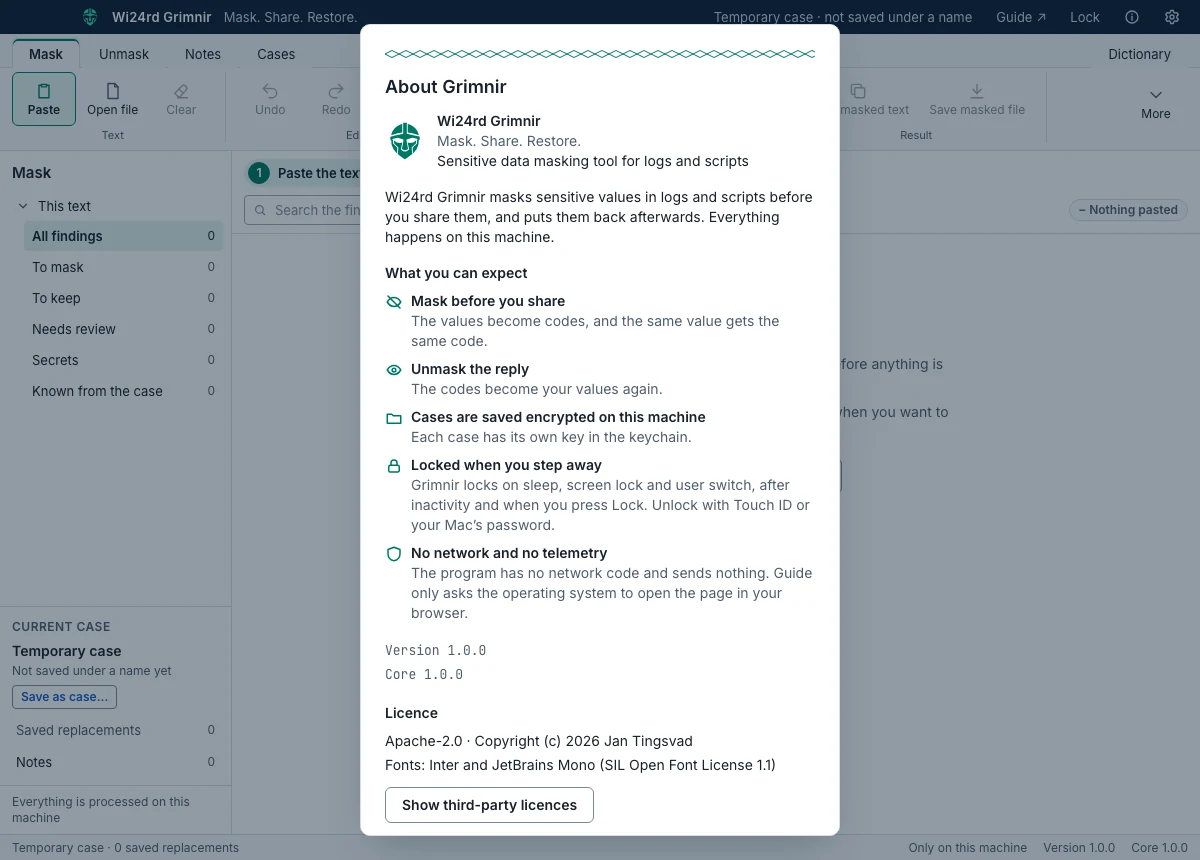
- Version and Core are the versions of the program and of the masking core. They are also at the bottom right of the window.
- Show third-party licences shows the licences for the components Grimnir is built with.
- Open the guide asks the operating system to open this guide in your browser.