Shortcut: ⌘1
What does it show?
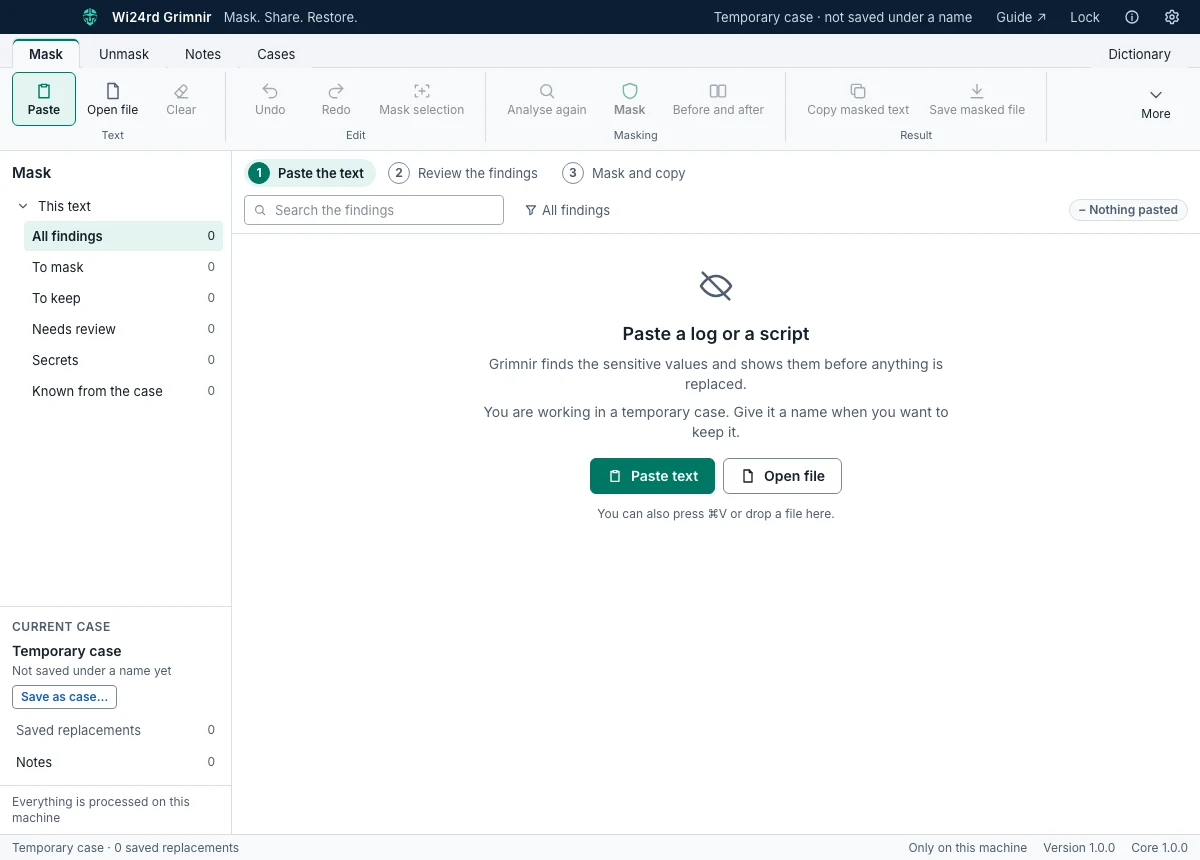
Mask is where you paste a log or a script, see what Grimnir found, and replace the values with codes. At the top are the three steps: Paste the text, Review the findings and Mask and copy. The step you are at is highlighted.
How to do it
- Copy the log or the script from where it is.
- Press ⌘V in Mask, or press Paste text. Grimnir analyses the text straight away.
- Go through the findings in the table Findings and replacements. Tick what should be masked, and untick what should be kept.
- Press Mask (⌘↵).
- Read the masked text, and press Copy masked text (⇧⌘C).
- Paste the text into your email or chat.
A pasted text can be up to 5 MB. Larger files you open with Open file (see below).
The findings
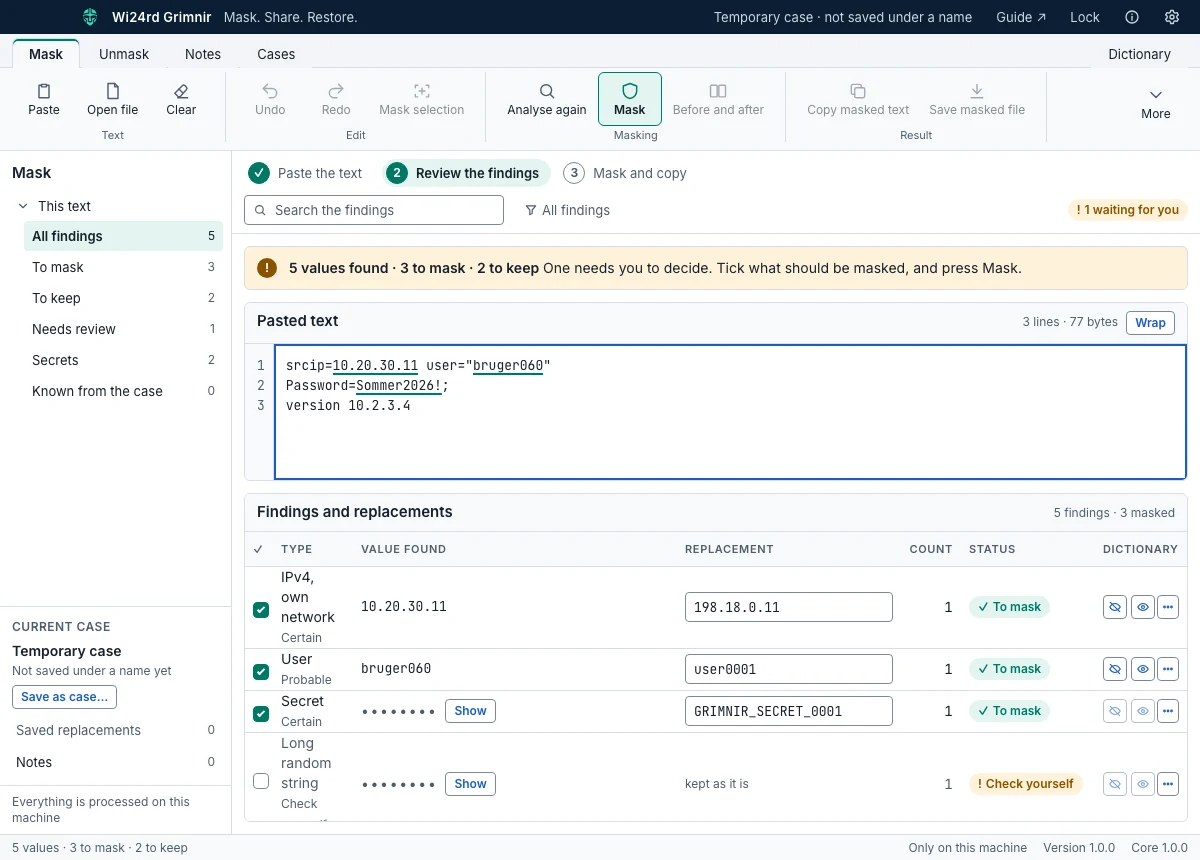
Each row in the table is one value, however many places it appears. The columns:
| Column | Means |
|---|---|
| ✓ | Tick: the value is masked. Without a tick it is kept as it is. |
| Type | What Grimnir thinks the value is, e.g. IPv4, own network, User or Secret. Under the type it says how sure Grimnir is: Certain, From dictionary, Probable, Check yourself or Version. |
| Value found | The value as it appears in the text. A secret is shown as dots. |
| Replacement | The code the value gets. You can edit it in the field. |
| Count | How many places the value appears in the text. |
| Status | To mask or To keep (after masking Masked or Kept). |
| Dictionary | Add the value to the dictionary as Always mask or Never mask, and the row's … menu. |
Rows marked Check yourself are those Grimnir is not sure about, and Version is a value that stands as a version number. Neither is ticked from the start. Always go through them.
Public addresses also appear as rows, but are only ticked from the start if Mask foreign public addresses is turned on for the case (see Settings).
The tree on the left filters the table: All findings, To mask, To keep, Needs review, Secrets and Known from the case (values the case already knew, which get the same code as last time). The field Search the findings searches codes and values.
Secrets
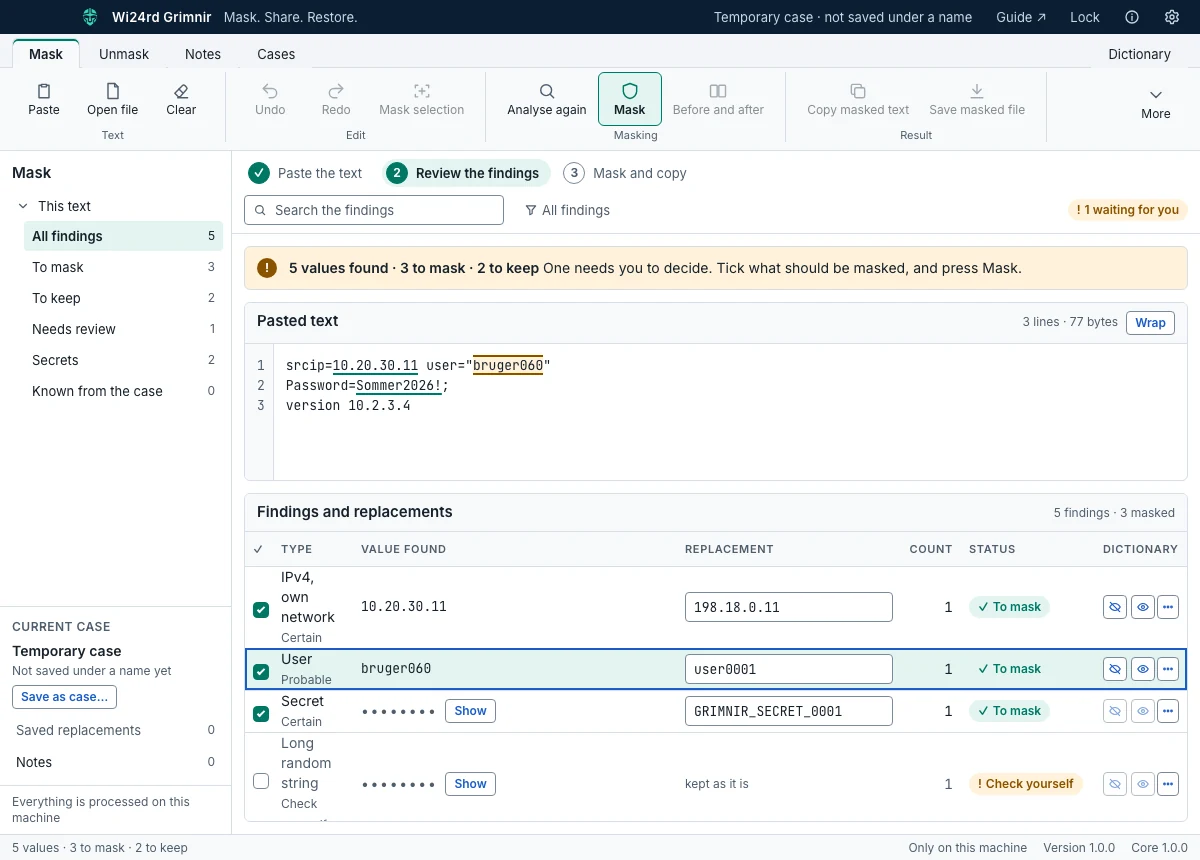
A secret, e.g. a password, is shown as dots in the table. Show shows the value in the row, and Hide hides it again. The value is only sent to the window when you choose Show, and the search does not find a hidden secret by its value. Secrets cannot be added to the dictionary.
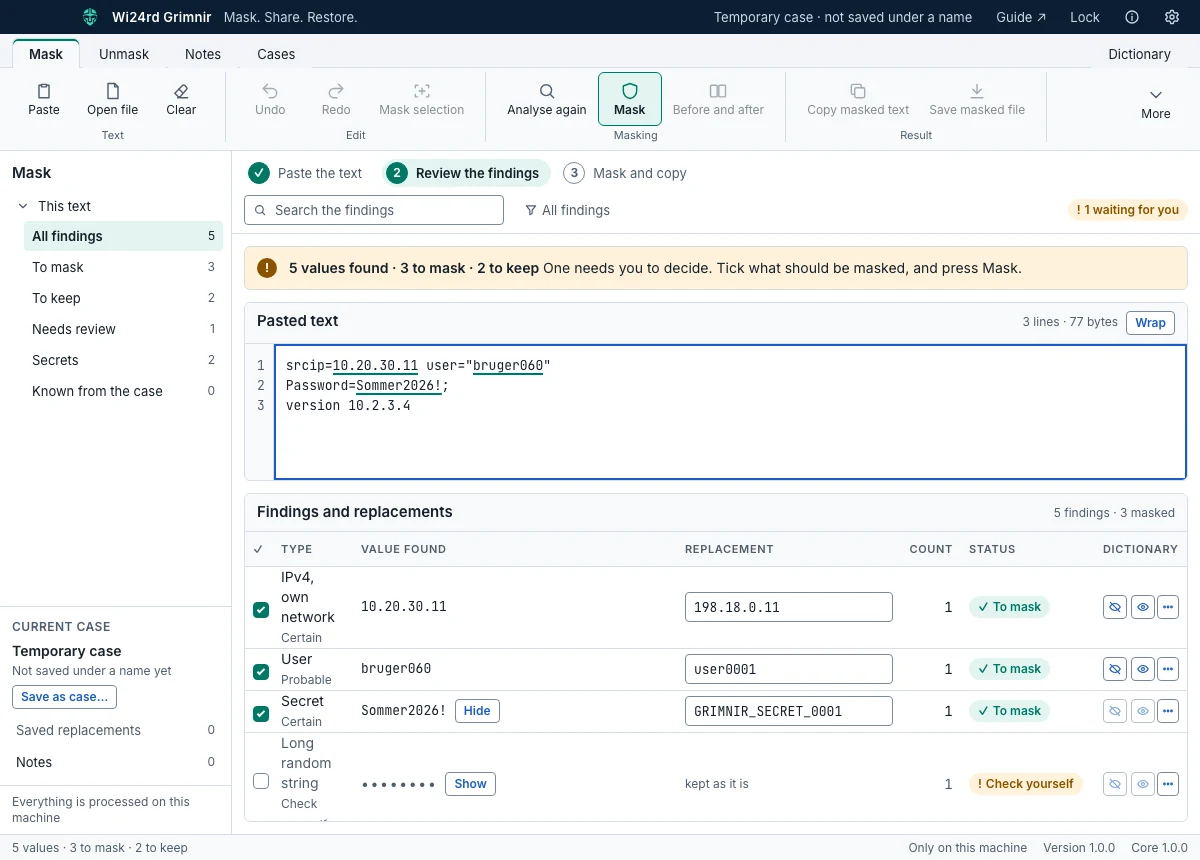
The row's "…" menu
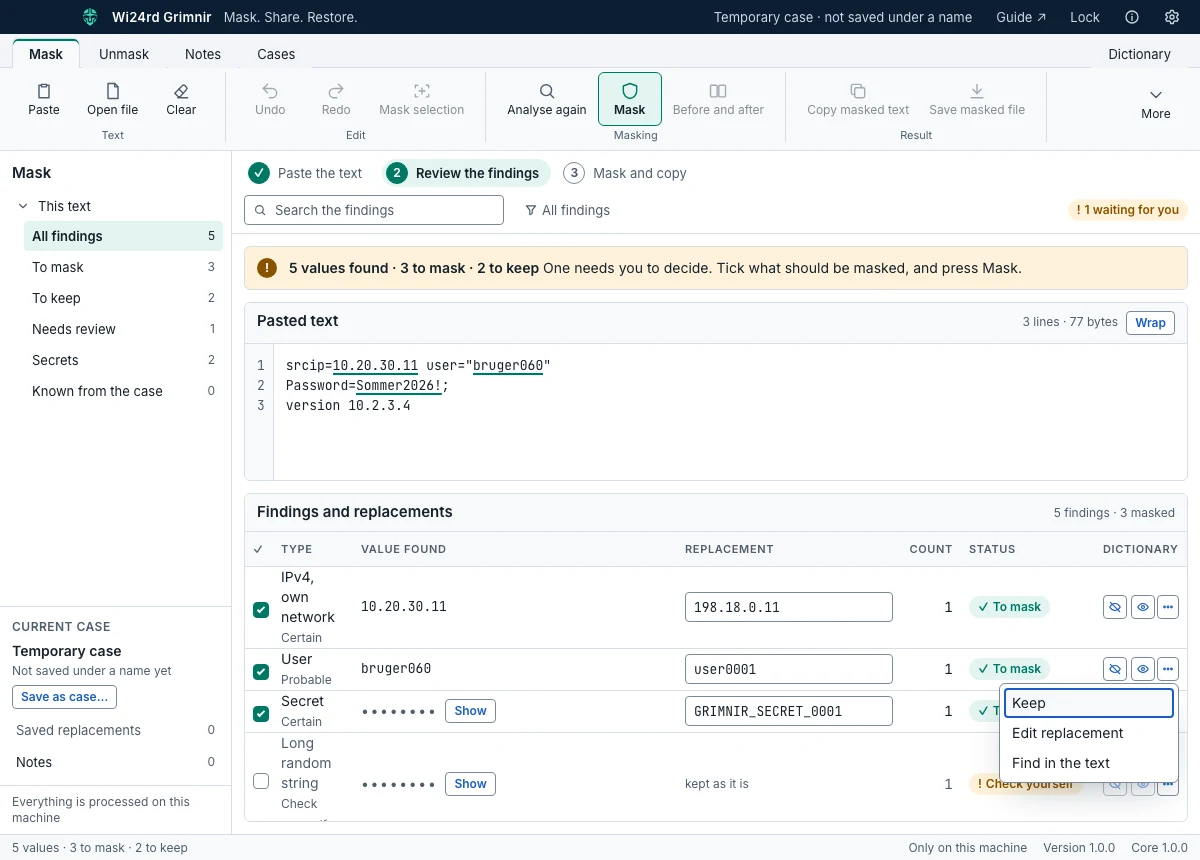
- Mask and Keep do the same as the tick.
- Edit replacement lets you edit the code in the field Replacement. A replacement that already exists in the case or in the text cannot be used.
- Find in the text shows where the value is.
- Remove is on a value you added yourself with Mask selection.
A value Grimnir did not find
- Select the value in the pasted text, with the mouse or Shift + arrow keys (⌥ takes a word at a time).
- Choose Mask selection (⇧⌘M) in the command bar or in the menu you get with a right-click. If it is a secret, choose Mask as secret.
Every place where the value stands as a whole word is included. A letter or digit right before or after makes it part of a longer word, and there it is not included. In an open file you select in the shown text (the first 200,000 characters); the row applies to the whole file.
Undo (⌘Z) and Redo (⇧⌘Z) work on your choices: ticks, replacements, types and added values. The history is cleared by Mask, a new text and Clear.
After masking
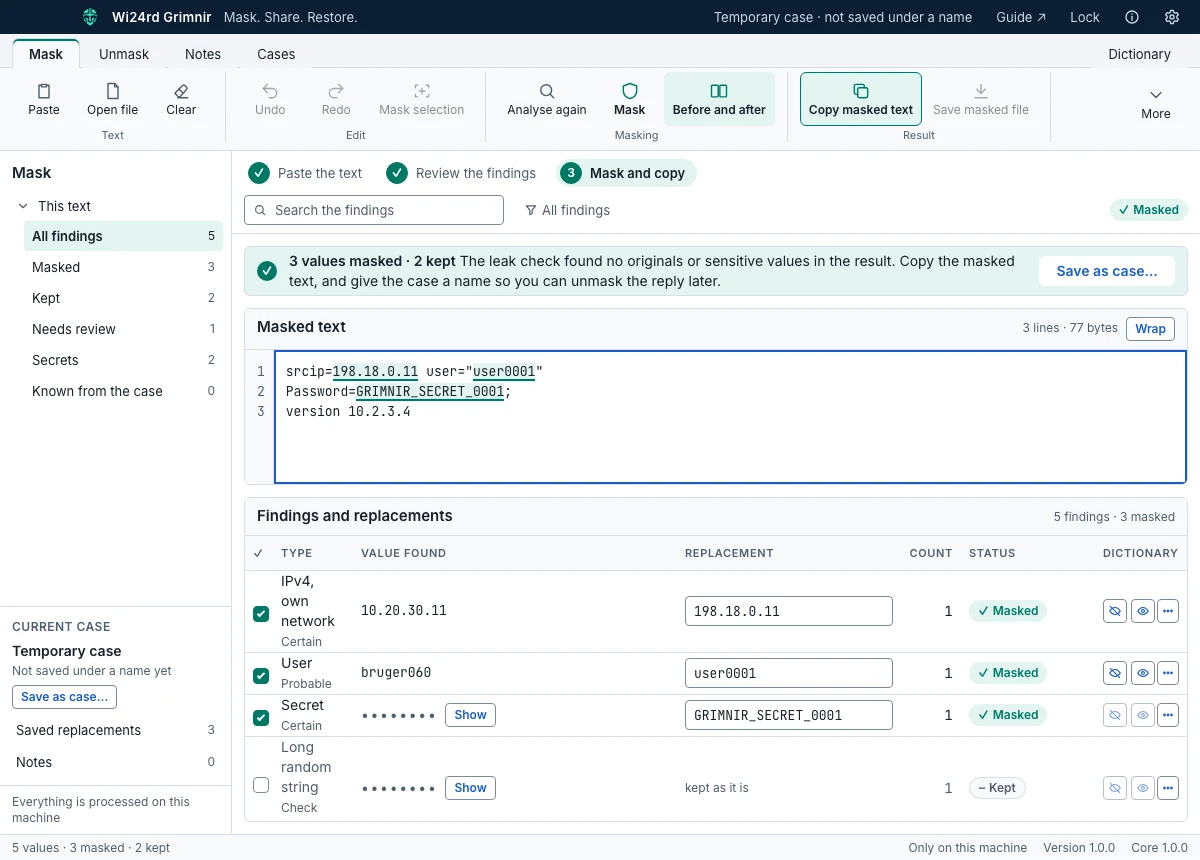
- Copy masked text (⇧⌘C) copies the masked text. It can be copied up to 5 MB; a larger result you save as a file.
- Save masked file (⌘S) saves the result as a new file. It is there when you have opened a file; a pasted text is copied instead.
- Copy receipt copies a short text with the figures from the masking: how many values of each type were masked. It has no original value and no file name, only the case name.
- Before and after shows the pasted text again, so you can select in it.
The leak check goes through the result after masking. If it finds an original or something that still looks like a sensitive value, the banner says so, and Show them shows the places.
If you change a choice after masking, it says The choices have changed. Press Mask again for a new result.
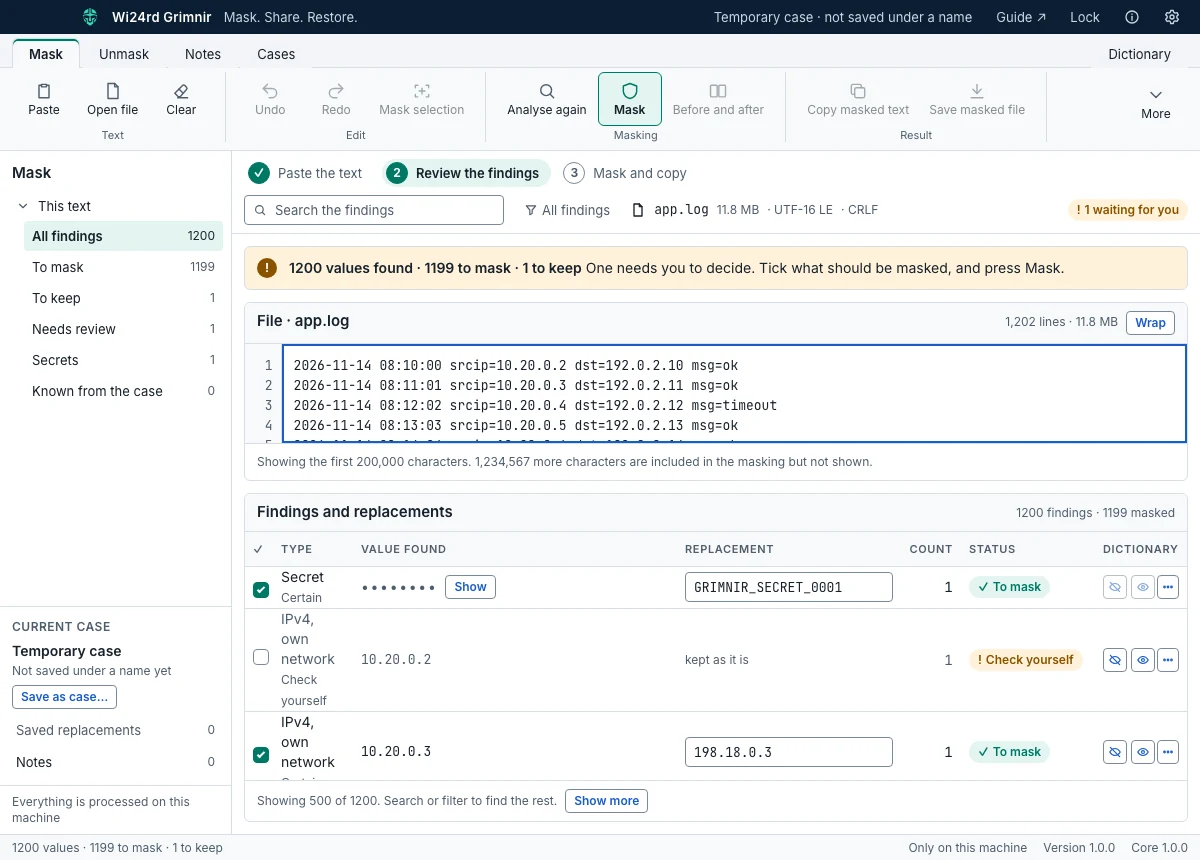
Open a file
Press Open file (⌘O), or drop the file on the window.
- The file can be up to 100 MB, in UTF-8 with or without a BOM or in UTF-16 with a BOM.
- The window shows the first 200,000 characters. The analysis and the masking apply to the whole file.
- The table shows 500 rows at a time. Show more shows more; search or filter to find the rest.
- Grimnir opens the file for reading only and never writes to it. Save masked file writes a new file, and it must not have the same name as the one the text came from.
- One file at a time. Folders and zip files cannot be opened.
A narrow window
When the window is narrow, the last commands in the command bar move under More. If the next step is one of them, More is highlighted, and the command is highlighted in the menu. Which commands move depends on the window's width, the language and the text size. After masking, the next step can be Copy masked text.
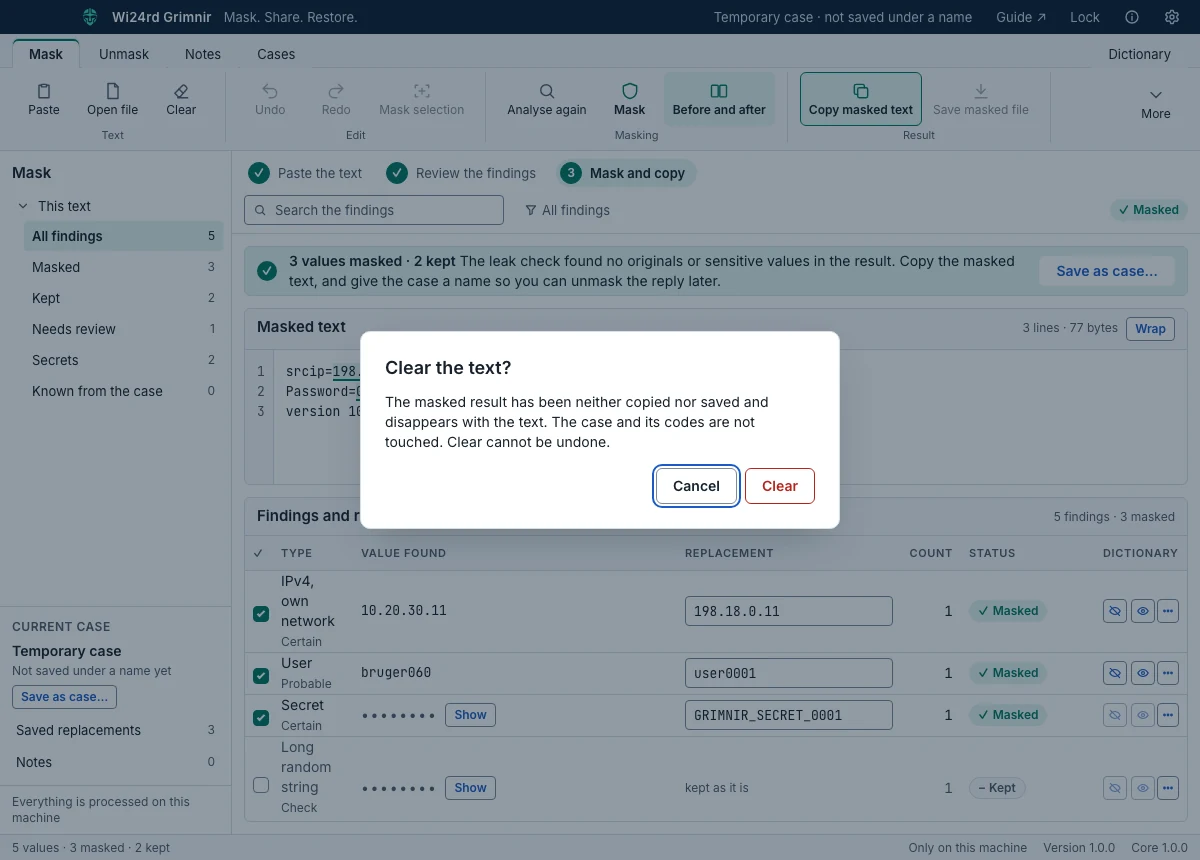
Clear
Clear removes the text, the findings and your choices. If the result has been neither copied nor saved, Grimnir asks first. The case and its codes are not touched.
The case in the title bar
A masking always belongs to a case. If you have not chosen one, it is the temporary case. The title bar shows Temporary case · not saved under a name, and a click opens the case dialog.
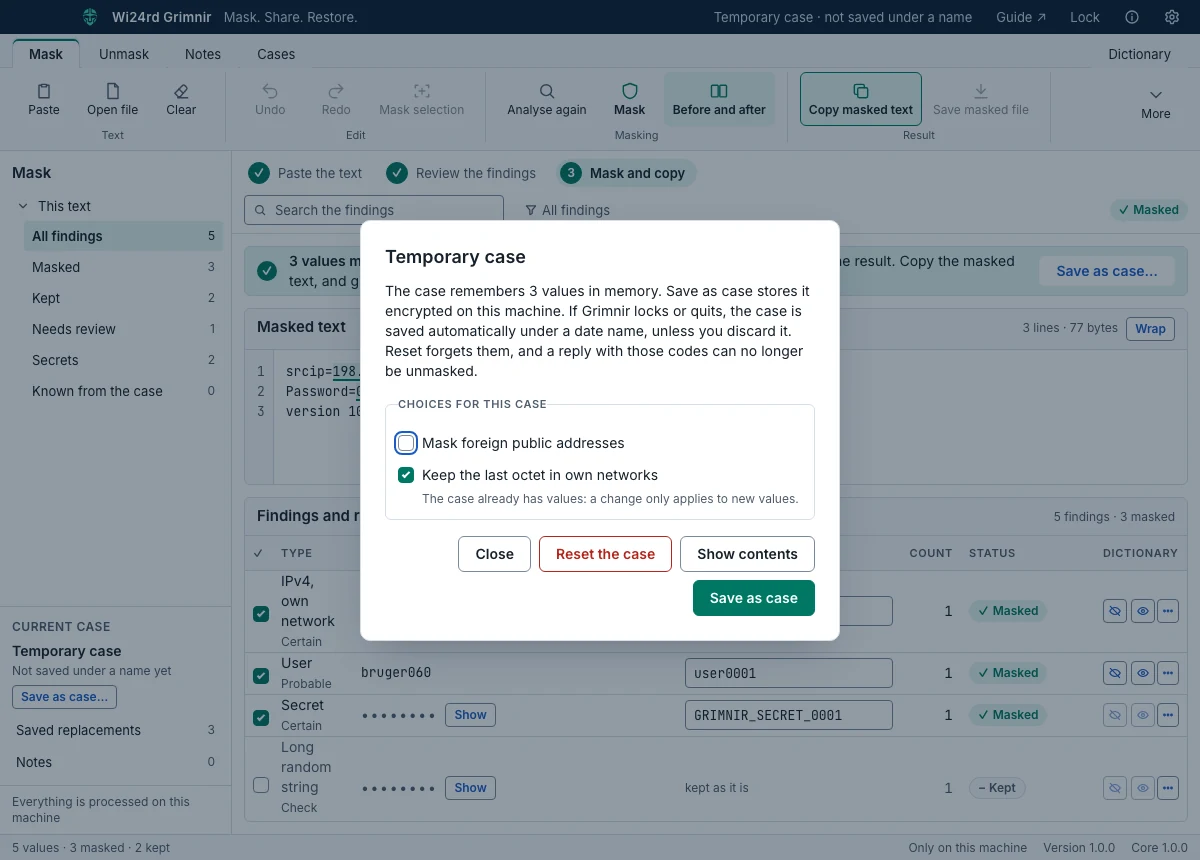
- Save as case gives the case a name and saves it encrypted.
- Reset the case forgets the case's values. A reply with those codes can then no longer be unmasked.
- Show contents shows the case's codes and values (see Cases).
If Grimnir locks or quits, a temporary case with values is saved automatically under a name with the date and time, unless you discard it. See The lock.
Click through
- A click on a row marks the value in the text. Find in the text in the row's menu does the same.
- A click on a filter in the tree shows only those rows.
- Show them in a banner shows the rows or places the banner talks about.
- Saved replacements under Current case on the left shows the case contents.