Shortcut: ⌘5
What does it show?
The dictionary is what Grimnir must always find, whatever the case: your domains, your networks and the form of your machine names. It is also what Grimnir must never touch. The dictionary applies in every case and is stored encrypted on your Mac with its key in the keychain.
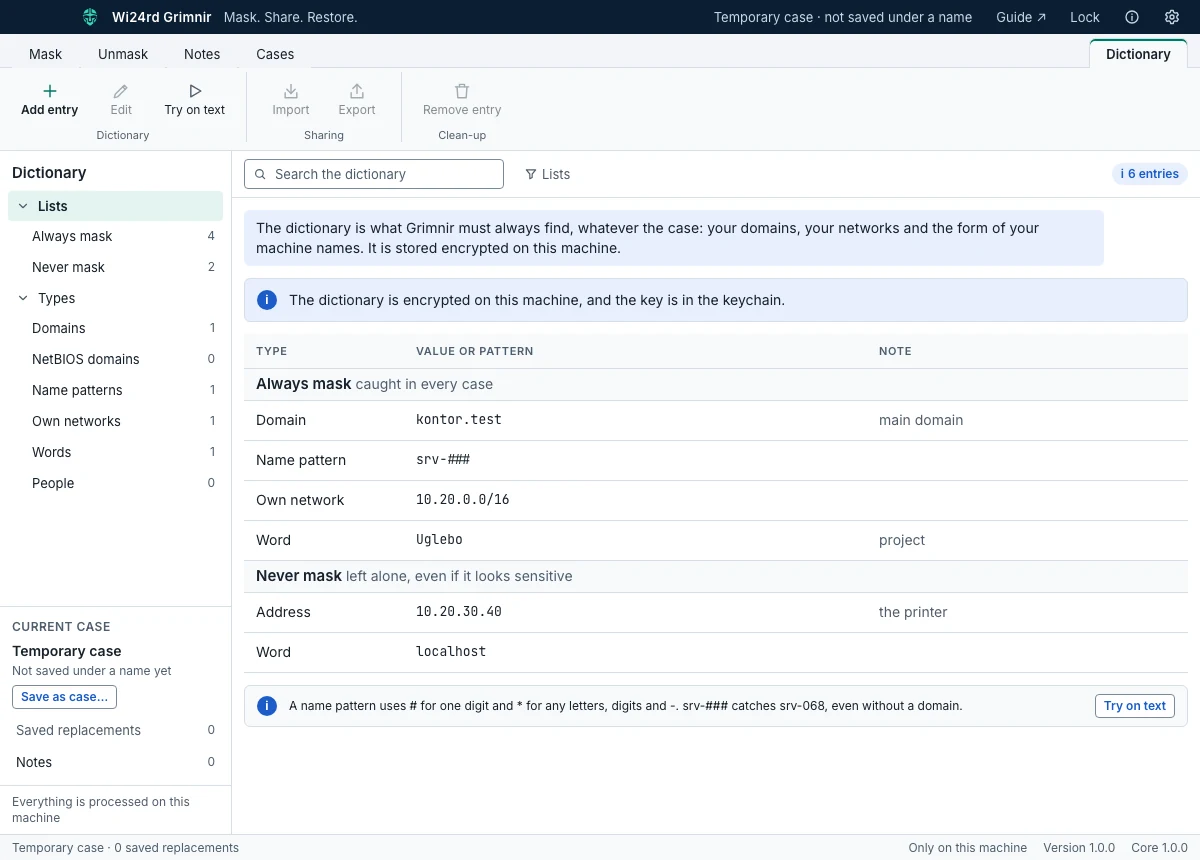
The dictionary has two lists:
- Always mask (caught in every case).
- Never mask (left alone, even if it looks sensitive). A value on Never mask wins over everything else.
The types
| Type | What you enter |
|---|---|
| Domain | A DNS domain with a dot, e.g. kontor.test. Machines under the domain are masked too. |
| NetBIOS domain | A NetBIOS domain without a dot, e.g. KONTOR (at most 15 characters). |
| Name pattern | # is one digit, * is any letters, digits and -. srv-### catches srv-068, even without a domain. |
| Own network | A network in CIDR form (address/prefix) or one address. The private networks under RFC 1918 are always your own; enter the others here. At most /8. |
| Word | A word that is always masked, e.g. a project or customer name (at least two characters). |
| Person | A person's name that is always masked. |
| Never mask | A value that is never masked: an address, a network, a domain or a word. |
Secrets cannot be added to the dictionary. If a value looks like a password, Grimnir says so.
How to do it
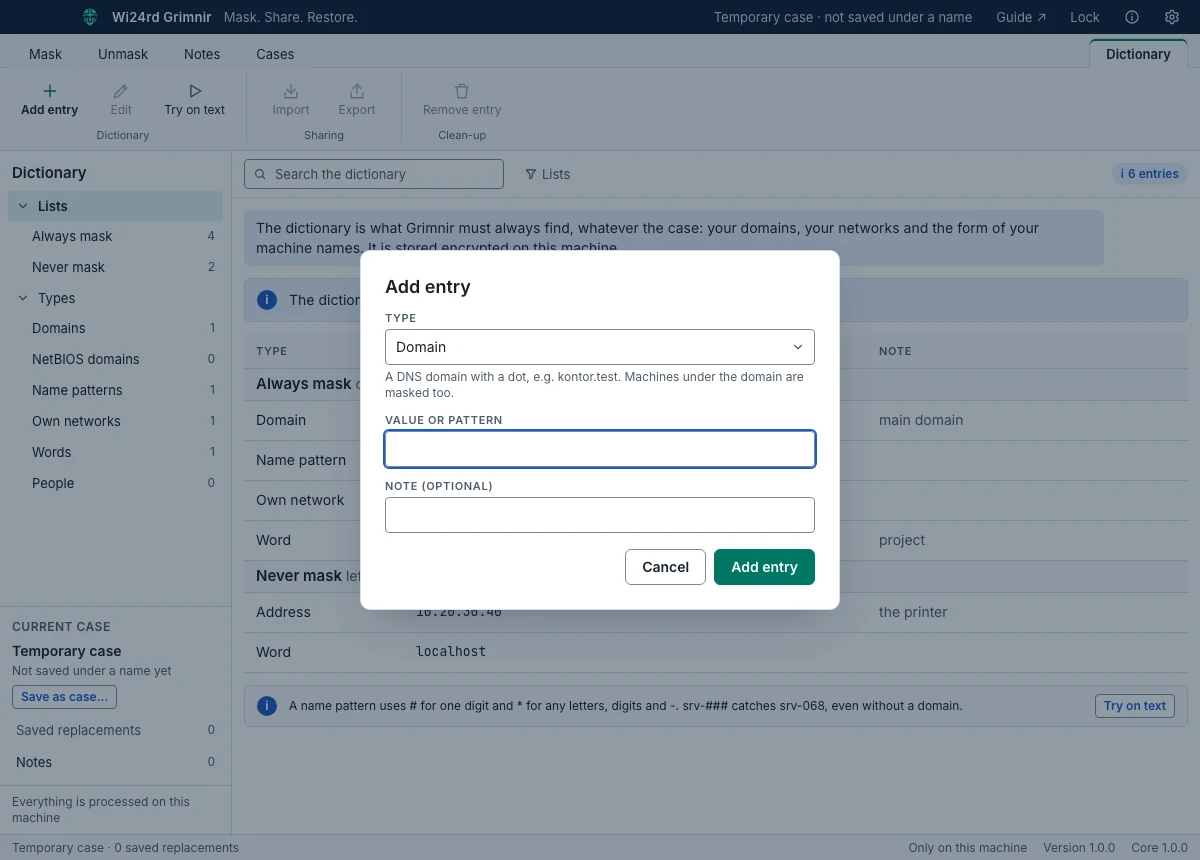
Add an entry
- Press Add entry.
- Choose Type, and enter Value or pattern.
- Optionally enter a Note (optional), e.g. what the value is (at most 200 characters).
- Press Add entry in the dialog.
From Mask
In the findings table under Mask each row has two buttons in the column Dictionary: Always (Always mask: add the value to the dictionary) and Never (Never mask: add the value to the dictionary). If several machine names in a text have the same form, Grimnir suggests the pattern in a banner with Add to dictionary and Not now.
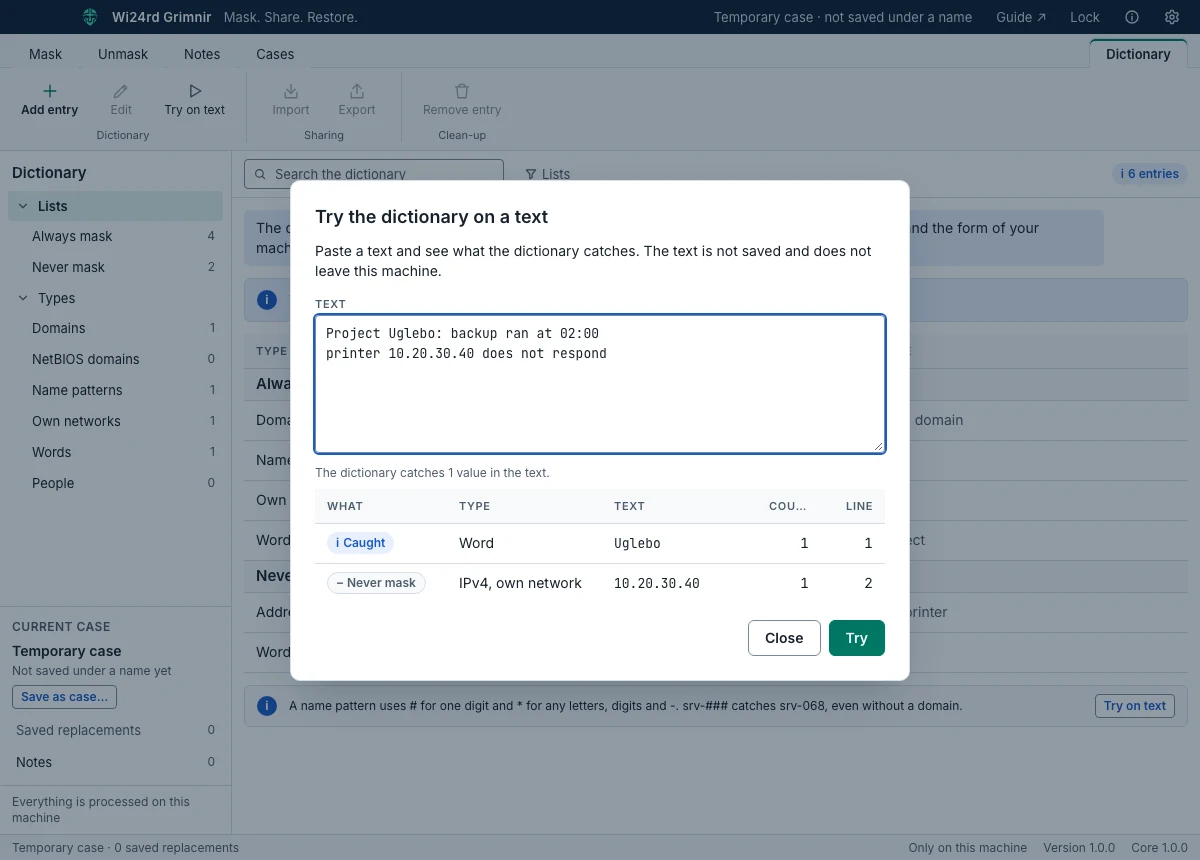
Try the dictionary on a text
Press Try on text, paste a text, and press Try. Grimnir shows what the dictionary catches. The text is not saved and does not leave this machine.
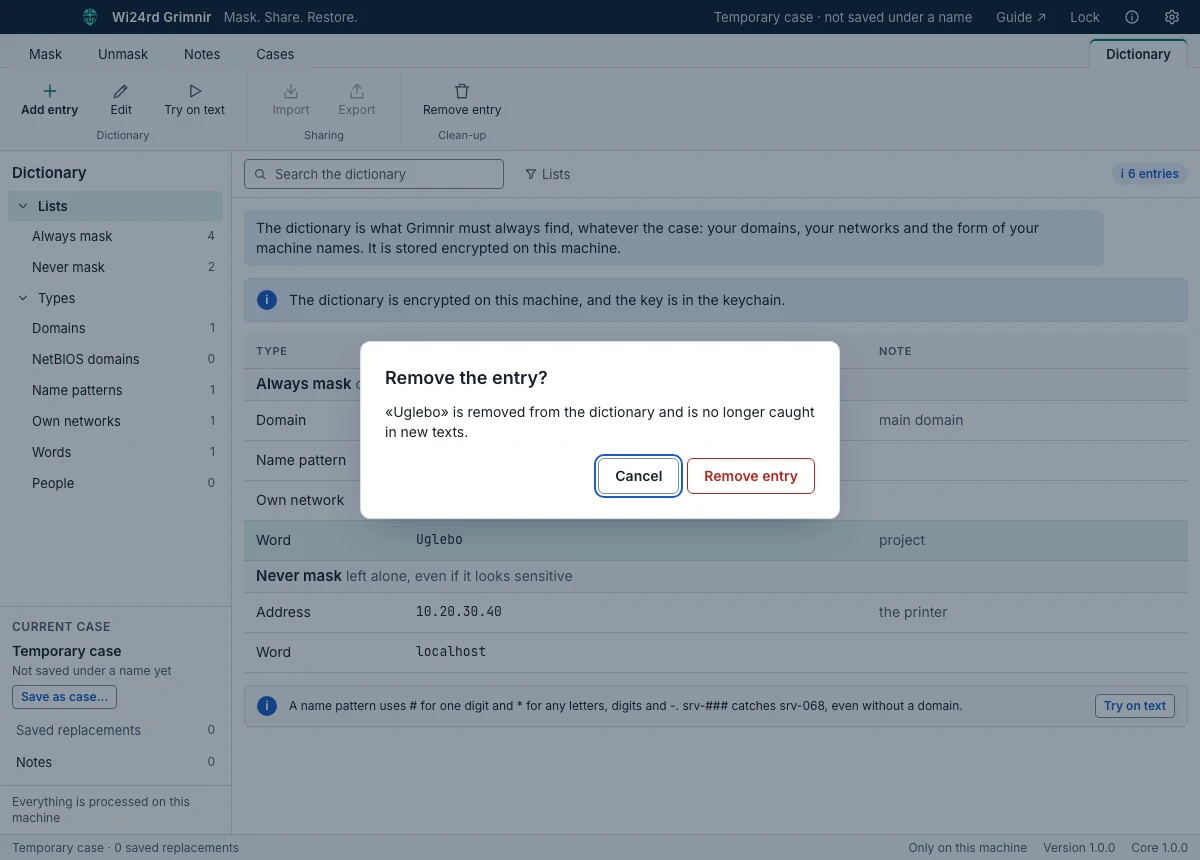
Edit or remove an entry
Select the entry, and press Edit or Remove entry. A removed entry is no longer caught in new texts.
Import and Export are greyed out: they are coming in a later version of Grimnir.
Click through
- An item in the tree (Always mask, Never mask or a type) shows only those entries.
- Search the dictionary searches the entries.
- Try on text is also in the banner below the list.